Your business is open. Your website works. Your customers are searching on Google. But when you search for your business, it’s nowhere to be found. Or it appears when you search its name, but disappears when you search for the services you offer.
Why Your Business Isn’t Showing Up on Google
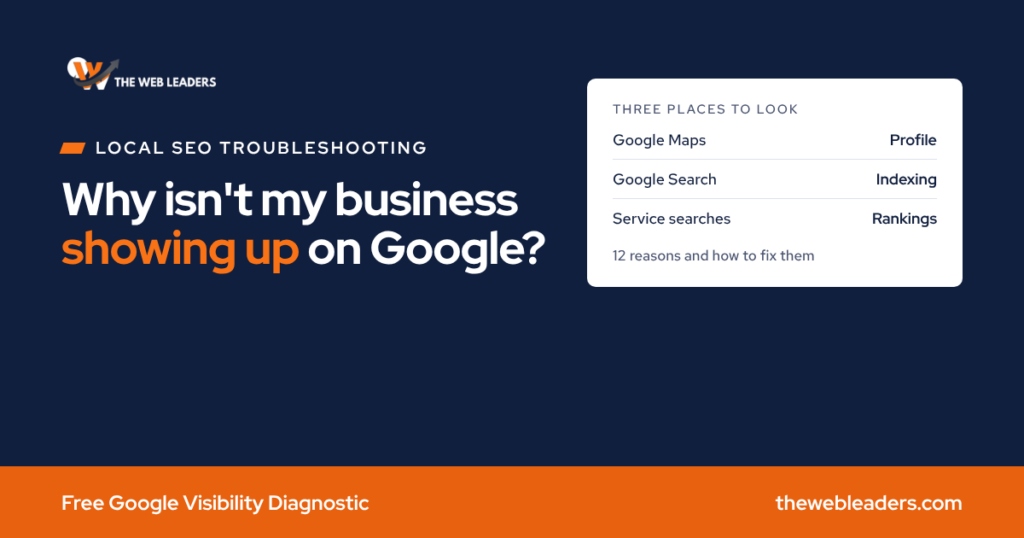
If your business isn’t showing up on Google, the problem usually falls into one of three categories. They are different problems, and they need different fixes.
Google Maps
Google Business Profile visibility
Typical symptom. You can’t find your listing on Google Maps, or it was there and has gone.
First thing to check. Sign in to Google Business Profile and look for a verification request or a restriction notice.
Google Search
Website crawling or indexing
Typical symptom. Your website loads when you visit it, but its pages don’t appear in Google Search.
First thing to check. Inspect your homepage with the URL Inspection tool in Google Search Console.
Rankings
Search ranking and relevance
Typical symptom. You appear when someone searches your name, but not when they search for what you sell.
First thing to check. Search for a service plus your town and compare the businesses that appear.
A business with a suspended Google Business Profile doesn’t need the same advice as a business whose website accidentally blocks search engines. And a business that already appears on Google but ranks below its competitors doesn’t necessarily have a technical problem at all.
Google Visibility Diagnostic
Answer a few quick questions to narrow down why customers may not be finding your business. You only see the questions that apply to you, and you don’t need to enter an email address to see your results.
First, Find Out Why Your Business Isn’t Showing Up on Google
Before changing your website, editing your Google Business Profile, or paying someone to fix your rankings, spend five minutes identifying the actual problem.
Start with this comparison.
| What you’re experiencing | Likely area to investigate | First action | Jump to solution |
|---|---|---|---|
| Your business doesn’t appear when searching its exact name | Business Profile status, listing existence, or website indexing | Check whether a listing exists and who manages it | Reason 3 |
| Your business appears on Maps but your website doesn’t appear in Search | Website indexing and organic visibility | Inspect your homepage in Search Console | Reason 5 |
| Your website appears but your Google Maps listing doesn’t | Business Profile eligibility, verification, or restrictions | Sign in and look for a verification request or notice | Reason 1 |
| Your business appears by name but not for its services | Search relevance and local rankings | Search a service plus your town and compare results | Reason 9 |
| Your business disappeared after a website redesign | Redirects, indexing directives, and technical changes | Compare old and new page addresses | Reason 8 |
| Your business appears in one city but not another | Location-dependent local rankings | Check results from each area you serve | Reason 10 |
| Your new business isn’t appearing yet | Setup, verification, discovery, and indexing status | Run the five-minute test below | Five-minute test |
| Your business suddenly disappeared from Maps | Business Profile status, policy notices, and recent changes | Look for a suspension or policy notice | Reason 2 |
These symptoms provide starting points, not confirmed diagnoses.
The Five-Minute Visibility Test
Five manual checks that separate a missing listing, an indexing problem and a ranking problem. You can do the first and fourth with nothing but a browser.
What you’ll need: your business name and website address. Access to Google Business Profile and Google Search Console helps, but isn’t required for the basic test.
Step 1: Search your exact business name and city
Open Google and search your business name plus your city, for example Smith Family Landscaping Birmingham AL. Look for your business in the regular results and in Google Maps.
If it appears, Google has some information about your business, and your problem may be that you’re not appearing for the services you offer. If it doesn’t, keep checking your Business Profile and website separately. This is a useful first test, but it cannot conclusively establish whether your profile exists or whether your website is indexed.
Step 2: Check your Google Business Profile
Visit Google Business Profile and sign in with the Google account associated with your business. Check whether you can access your profile and whether Google displays any verification requests, restrictions, or other notices.
If you don’t have access, that doesn’t automatically mean the profile is missing. It may be managed through another Google account.
Step 3: Check whether Google has indexed your website
If you have Google Search Console, open the URL Inspection tool and inspect your homepage, then an important service page. It can tell you whether Google has indexed a URL, which canonical URL Google selected, and whether certain crawling or indexing issues exist.
No Search Console yet? Try searching site:yourwebsite.com. This may reveal some pages Google knows about, but it is not a complete or definitive indexing test.
Step 4: Decide whether you’re missing or simply ranking poorly
If your business appears when you search its exact name but not when you search for something like “landscaping company near me,” your issue may be search ranking rather than missing visibility.
That distinction matters. You don’t want to spend time trying to verify a perfectly valid Business Profile when the real problem is that competitors have stronger local relevance, prominence, or geographic advantages.
Step 5: Check for recent changes
Recent changes are important clues. Ask whether you recently launched, redesigned or migrated your website; changed your business name, address, phone number or domain; moved the business; updated your Google Business Profile; or received a Google policy or verification notification.
Why Is My Business Not Showing Up on Google? 12 Common Reasons
There isn’t one universal reason a business fails to appear on Google.
Some problems involve Google Business Profile. Others involve website indexing. And some aren’t technical problems at all—they’re ranking challenges.
The following 12 causes cover the most important areas to investigate.
Google Maps and Business Profile Problems
Reasons 1 to 4 and reason 11 concern your Google Business Profile: verification, eligibility, restrictions, business information and duplicate profiles.
1 Your Google Business Profile Isn’t Verified
Symptoms You can access your Business Profile, but Google requests verification, or the profile isn’t appearing as expected.
Google uses verification to confirm that a business is legitimate and that the person managing its profile is authorized to represent it.
Creating a profile does not necessarily mean it is verified.
How to check
- Sign in to Google Business Profile.
- Select the correct business.
- Look for verification requests or status notices.
- Follow the verification instructions Google provides.
How to fix it
Complete the verification process using the method offered for your business.
Depending on the circumstances, Google may offer video recording, live video, phone, text, email, or other verification methods.
Not every method is available to every business.
Make sure your business name, location information, and supporting evidence accurately represent your real business.
How to verify the fix
Confirm that Google no longer requests verification and that your profile is eligible to appear publicly.
What to expect: Verification establishes that you are authorized to manage the business. It does not guarantee prominent rankings or immediate visibility for every search.
Official resource: Verify your business on Google.
2 Your Google Business Profile Is Suspended or Disabled
Symptoms Your business disappeared from Maps, Google displays a suspension or restriction notice, or you can no longer manage the profile normally.
Google may restrict Business Profiles that violate its policies or raise concerns about eligibility or accuracy.
A suspension can affect your ability to manage the listing and its public visibility.
How to check
Sign in to your Business Profile and review any restriction notices.
Check the associated email account for messages from Google.
Read the reason or policy category provided, if available.
How to fix it
- Review Google’s Business Profile guidelines.
- Identify any inaccurate or noncompliant business information.
- Correct issues where appropriate.
- Use Google’s official appeal process.
- Provide requested supporting evidence.
Evidence may include business registration documents, licenses, utility bills, or other records, depending on Google’s requirements.
Do not assume every appeal will require the same documentation.
What not to do
Don’t immediately create another Business Profile to replace the restricted one.
Creating duplicate listings to bypass restrictions can create additional problems.
How to verify the fix
Review the appeal status and confirm that Google has restored the profile’s eligibility or management access.
Official resource: Google Business Profile appeals.
3 Your Business Doesn’t Have an Eligible or Properly Managed Google Business Profile
Symptoms You cannot find a listing, you don’t know who manages it, or your business has never been added to Google Maps.
Some business owners assume Google automatically creates and maintains a complete listing for every business.
That’s not something you should rely on.
Google may already have information about your business, but you may need to claim an existing listing or create a profile if your business is eligible.
How to check
Search Google Maps for your business name, address, and phone number.
Check whether a listing already exists.
If it does, determine whether you can claim or request access to it.
How to fix it
If an eligible profile already exists, follow Google’s process to claim or request ownership.
If no profile exists and your business qualifies, create one using accurate business information.
Google Business Profiles are generally intended for businesses that have in-person contact with customers during their stated hours, including eligible service-area businesses.
Online-only businesses without eligible in-person customer contact generally do not qualify.
How to verify the fix
Confirm that the correct listing exists, that you have appropriate management access, and that verification requirements are satisfied.
Official resource: Google Business Profile guidelines.
4 Your Business Information Is Incorrect or Inconsistent
Symptoms Google displays outdated information, your business appears under an unexpected category, or customers encounter conflicting addresses, hours, or phone numbers.
Accurate business information helps Google and customers understand your business.
Incorrect details can create confusion, reduce trust, and interfere with a customer’s ability to contact or visit you.
How to check
Review your:
- Business name
- Primary category
- Additional relevant categories
- Address or service area
- Phone number
- Website URL
- Business hours
- Services
- Business description
Compare the information with your website and other important business listings.
How to fix it
Correct inaccurate information and choose categories that accurately represent your business.
Don’t add unnecessary keywords to your business name.
For example, if your actual business name is “Smith Family Landscaping,” don’t change it to “Smith Family Landscaping Best Lawn Care Birmingham Alabama” simply to target more searches.
Your profile should reflect your real-world business identity.
How to verify the fix
Confirm that Google displays the correct information and that customers can reach your website, call your business, and find the correct location.
Some edits may require review or additional verification.
Important: Inconsistent directory information is worth correcting, but it doesn’t automatically explain every ranking or visibility problem.
Google Search and Website Indexing Problems
Reasons 5 to 8 and reason 12 concern your website: discovery, crawling, indexing, canonical URLs, site moves and serious technical or security issues.
5 Google Hasn’t Discovered or Indexed Your Website
Symptoms Your website works when you visit it directly, but its pages don’t appear in Google Search.
Publishing a website doesn’t automatically guarantee that Google will include it in search results.
Google must discover the URL, crawl it when appropriate, evaluate its content, and decide whether to index it.
Discovery, crawling, and indexing are separate processes.
How to check
- Open Google Search Console.
- Inspect your homepage URL.
- Review the indexing result.
- Check whether the page is known to Google.
- Repeat the process for important service pages.
If Search Console indicates that Google hasn’t discovered the URL, you may need to improve discovery.
If the URL has been crawled but not indexed, the issue may require a different investigation.
How to fix it
- Ensure the page is accessible.
- Link to it from other relevant pages on your website.
- Include appropriate URLs in your XML sitemap.
- Check for unintended indexing restrictions.
- Publish useful, original content.
- Request indexing when appropriate.
How to verify the fix
Use URL Inspection to monitor the page’s indexing status.
What to expect: Submitting a sitemap or requesting indexing does not guarantee that Google will index the page.
Official resource: Google Search indexing documentation.
6 Your Website Is Blocking Google From Crawling or Indexing Important Pages
Symptoms Search Console reports indexing restrictions, or important pages remain excluded despite being accessible to visitors.
Websites can accidentally prevent search engines from accessing or indexing content.
This sometimes happens after website development, migrations, or changes to SEO settings.
Two common mechanisms are robots.txt restrictions and noindex directives.
They do different things.
Robots.txt restrictions
A robots.txt file can instruct compliant crawlers not to request certain URLs.
However, blocking crawling does not always prevent a URL from appearing in Google Search. Google may sometimes discover and index a blocked URL using information from other sources, without crawling its content.
Noindex directives
A noindex directive tells Google not to include a page in its search index once Google can access and process that directive.
If the page is blocked from crawling, Google may not be able to see the noindex instruction.
How to check
Open Search Console’s URL Inspection tool and review the crawl and indexing details.
If necessary, inspect the page’s HTML or HTTP headers and review the site’s robots.txt file.
How to fix it
Remove unintended restrictions from pages that should be indexed.
Be careful not to remove legitimate restrictions from private, duplicate, internal, or otherwise intentionally excluded pages.
If you are unsure which restrictions are appropriate, have someone with technical SEO experience review them before making changes.
How to verify the fix
Confirm that Google can access the page and that the relevant indexing directive has been corrected.
Then monitor indexing status.
What to expect: Making a page technically indexable does not guarantee that Google will choose to index it.
Official resources: Robots.txt guidance and Robots meta tags.
7 Google Selected a Different Canonical URL
Symptoms Search Console reports that Google selected a different canonical URL, or a page you expected to appear is not independently indexed.
A canonical URL is the version of a page Google considers representative when multiple URLs contain duplicate or substantially similar content.
For example, your website might have several URLs displaying nearly identical content.
Google may decide to index one primary version rather than every variation.
This is normal in many situations.
How to check
Inspect the affected URL in Search Console.
Compare the user-declared canonical URL with the Google-selected canonical URL.
Determine whether the selected page is actually the version you want appearing in search results.
How to fix it
If Google selected the appropriate canonical URL, you may not need to change anything.
If the selection is inappropriate, review:
- Canonical tags
- Internal links
- Redirects
- Sitemap URLs
- Duplicate content
- HTTP and HTTPS versions
- Trailing-slash variations
Make sure these signals consistently support your preferred URL.
How to verify the fix
Monitor the Google-selected canonical URL after Google recrawls the relevant pages.
Important: A different canonical selection is not automatically a website error, and changing a canonical tag does not force Google to select that URL.
Official resource: Canonicalization documentation.
8 Your Website Was Recently Launched, Redesigned, or Moved
Symptoms Your business recently launched a website, changed domains, or redesigned its pages, and visibility is limited or has declined.
New websites can take time to be discovered and indexed.
Website redesigns can also introduce technical problems that affect existing visibility.
Common issues include:
- Important URLs changing without redirects
- Deleted service pages
- Accidental
noindexsettings - Incorrect canonical tags
- Broken internal links
- Missing content
- Incorrect redirects
- Changes to website architecture
How to check
Compare your previous and current website URLs.
Review Search Console for changes in indexed pages, organic clicks, and indexing errors.
If the website was migrated, check whether important old URLs redirect to appropriate new pages.
How to fix it
Restore missing content where appropriate, correct indexing restrictions, and implement relevant permanent redirects.
Update internal links and XML sitemaps.
Avoid redirecting every removed page to the homepage regardless of relevance.
How to verify the fix
Monitor important URLs in Search Console and check that redirects lead visitors and search engines to the correct destinations.
If rankings declined after a redesign, compare performance over time rather than assuming every fluctuation represents a technical failure.
Official resource: Google’s site move guidance.
Search Ranking and Visibility Problems
Reasons 9 and 10 are not technical faults. Google can see your business; it just isn’t choosing it for the searches you care about.
9 Your Business Appears by Name but Doesn’t Rank for Its Services
Symptoms Searching your exact business name works, but searches such as “roofing company near me” or “landscaping services in Birmingham” don’t show your business prominently.
This is one of the most misunderstood Google visibility problems.
If Google already displays your business when someone searches its name, the issue may not be indexing or verification.
Instead, Google may not consider your business one of the most relevant or prominent results for the broader service query.
How to check
Search for your important services and geographic areas.
Compare the businesses appearing in results.
Review whether your website clearly explains your services and whether your Google Business Profile accurately reflects them.
Use Search Console to identify which search queries generate impressions and clicks for your website.
How to fix it
Focus on improving relevance and usefulness.
Potential improvements include:
- Creating helpful, specific service pages
- Using accurate Google Business Profile categories
- Clearly describing the services you provide
- Improving your website’s navigation
- Adding useful project examples
- Maintaining accurate business information
- Encouraging genuine customer reviews
- Earning relevant mentions and links
Avoid creating dozens of nearly identical location pages simply to target every nearby city.
How to verify the fix
Monitor relevant search queries, website impressions, organic clicks, qualified inquiries, and local visibility over time.
If your business is already visible but needs stronger local rankings, see our Ultimate Guide to Ranking on Google Maps.
10 Your Business Location Affects Where You Appear
Symptoms Your business appears in Google Maps near your physical location but becomes harder to find when searching from another area.
Google’s local ranking systems consider relevance, distance, and prominence.
Distance matters because Google attempts to provide locally relevant results.
A business located in one community may not appear as prominently to someone searching from another community, even when the business serves both areas.
How to check
Compare local search results from relevant locations using reliable location-based testing.
Avoid relying entirely on one search from your own phone or computer.
Remember that rankings can change depending on location, search wording, and other factors.
How to fix it
Make sure your Business Profile accurately represents your real location or eligible service area.
Create genuinely useful website content explaining the services and communities you serve.
Build your reputation and visibility in the markets relevant to your business.
Do not use fake addresses, virtual offices that don’t meet eligibility requirements, or keyword-stuffed business names to manipulate proximity.
How to verify the fix
Monitor visibility across the locations you actually serve.
Evaluate qualified leads and customers from those areas rather than focusing on a single ranking position.
Important: Adding cities to your service-area settings does not guarantee rankings in those cities.
Official resource: Google’s local ranking guidance.
11 Duplicate Listings or Major Business Changes Are Creating Problems
Symptoms Multiple listings appear for the same business, customers find outdated information, or your profile requires additional verification after a major change.
Business moves, ownership changes, duplicate profiles, and conflicting information can complicate profile management.
Not every duplicate-looking result is necessarily an error, and not every business change causes a ranking problem.
How to check
Search Google Maps for your business name, address, and phone number.
Look for duplicate listings representing the same real business.
Review your Business Profile management account for ownership or verification issues.
How to fix it
Use Google’s supported processes to resolve duplicate profiles, request ownership, or update business information.
If your business moved, update the existing eligible profile where appropriate rather than automatically creating a new listing.
Avoid deleting profiles or requesting merges without understanding which listing contains the correct information.
How to verify the fix
Confirm that the appropriate business listing remains accessible and accurately represents your current business.
Monitor for verification requests and changes in public visibility.
12 Your Website Has a Manual Action, Security Problem, or Serious Technical Issue
Symptoms Organic search visibility drops significantly, important pages disappear, or Search Console reports a manual action or security issue.
Most ranking fluctuations are not caused by manual actions.
However, Google can take action against websites that violate its spam policies, and security problems can also affect how users and search engines interact with a site.
Serious technical failures can independently prevent pages from being crawled or indexed.
How to check
Open Google Search Console and review:
- Manual Actions
- Security Issues
- Page Indexing
- URL Inspection
- Search performance trends
Check whether the website loads correctly and whether important pages return successful HTTP responses.
How to fix it
The appropriate fix depends on the confirmed problem.
A manual action requires addressing the identified policy violation and following the relevant reconsideration process.
A hacked website may require security remediation, credential changes, software updates, and removal of malicious content.
Technical issues may require correcting server responses, redirects, indexing restrictions, or website configuration.
How to verify the fix
Use the relevant Search Console reports and official review procedures.
Do not assume a traffic decline is a manual action unless Google actually reports one.
Official resources: Manual actions and Security issues.
How to Fix a Business That Isn’t Showing Up on Google Maps
If you’ve determined that your Google Business Profile is the problem, use this troubleshooting sequence.
Check whether your business is eligible
Confirm that your business meets Google’s Business Profile eligibility requirements.
Find the existing listing
Search Maps for your business name and address.
Avoid creating a duplicate if a valid listing already exists.
Confirm management access
Sign in using the appropriate Google account.
If someone else manages the listing, use the supported ownership request process.
Review verification and restrictions
Check for verification requirements, suspension notices, or other restrictions.
Correct business information
Review your categories, contact information, address or service area, website, and hours.
Confirm the result
Check whether your business appears publicly and whether customers can access accurate information.
If the profile is valid and visible but ranks poorly, move on to local SEO rather than repeatedly changing profile settings.
How to Fix a Website That Isn’t Showing Up on Google Search
If the issue involves your website rather than Google Maps, use this sequence.
Step 1: Set up Google Search Console
Search Console is Google’s free tool for understanding how your website performs in organic search.
Verify ownership of your website and ensure the correct property is configured.
Step 2: Inspect your homepage
Use URL Inspection to determine whether the homepage is indexed.
Review the result carefully.
An indexed homepage does not mean every service page is indexed.
Step 3: Inspect your most important service pages
Check the pages customers would need to find when searching for your services.
Focus on pages with meaningful business value.
Step 4: Review indexing problems
Determine whether pages are blocked, redirected, duplicated, inaccessible, or otherwise excluded.
Remember that not every excluded URL represents a problem.
Step 5: Check your website’s technical foundation
Review your sitemap, internal links, canonical tags, redirects, and indexing directives.
Step 6: Request indexing when appropriate
After fixing a genuine issue, you can request indexing for important URLs through Search Console.
This is a request, not a guarantee.
Step 7: Monitor performance
Use Search Console to track indexing status, search impressions, clicks, and queries over time.
If your pages are indexed but aren’t generating relevant traffic, the next step is usually content and search visibility optimization rather than additional indexing requests.
Why Your Business Shows Up for Its Name but Not Its Services
This situation deserves special attention because it often represents a valuable marketing opportunity.
Suppose someone searches for “Smith Family Landscaping” and finds your business immediately.
That’s useful, but the person searching already knows your company exists.
Now consider someone searching for “landscaping company near me.”
That person may be actively looking for a business to hire.
If your company doesn’t appear prominently for relevant service searches, you’re potentially missing opportunities to reach customers who haven’t heard of you yet.
This is where local SEO becomes particularly important.
Your website needs to explain what you offer
A homepage that simply says “Welcome to Smith Family Landscaping” may not provide enough useful information about the company’s services.
Detailed, well-organized service pages can help search engines and customers understand what the business offers.
Your Business Profile should accurately represent your services
Appropriate categories, accurate business information, and relevant details help establish what your business does.
Your reputation matters
Reviews, relevant mentions, links, and other indicators of prominence may contribute to how a business is understood and evaluated online.
Your website must convert visitors
Even if improved visibility generates additional traffic, your website still needs to convince visitors to contact you.
Clear service descriptions, authentic photos, customer reviews, contact information, and straightforward calls to action can all help. We cover this in why a small business website isn’t generating leads.
The objective isn’t simply to appear on Google. It’s to appear in front of relevant customers and give them a reason to choose your business.
What to Do If Your Business Suddenly Disappeared From Google
A sudden loss of visibility requires a different approach from a business that has never appeared in search results.
Before making changes, determine exactly what disappeared.
Was it your Google Business Profile?
Your website’s organic search listings?
A particular service page?
Or did your rankings decline without disappearing entirely?
Check the timeline
Identify approximately when the change happened.
Compare that date with website updates, domain changes, profile edits, technical work, and Google notifications.
Review Google Search Console
Check organic search performance, indexing status, manual actions, and security issues.
Review your Google Business Profile
Check verification status, restrictions, and recent changes.
Avoid making multiple unrelated changes
If you change your business categories, website content, redirects, canonical tags, and profile information simultaneously, it becomes harder to determine what actually caused or resolved the problem.
Document your findings and prioritize changes based on evidence.
7 Mistakes That Can Make Your Google Visibility Problem Worse
When your business isn’t appearing on Google, it’s tempting to try everything you can find online. Some common shortcuts create additional problems.
1 Creating another Google Business Profile
Why it’s risky. A duplicate created to get around a suspended, inaccessible or misconfigured profile can complicate the situation and may itself be restricted.
What to do instead. Investigate the original profile first, and use Google’s appeal or ownership-request process.
2 Adding keywords to your business name
Why it’s risky. Adding unrelated keywords or place names to influence rankings may violate Google’s guidelines and put the profile at risk.
What to do instead. Use your real business name, and describe what you do through categories, services and your website.
3 Using a fake business address
Why it’s risky. A virtual office or borrowed address does not automatically qualify as an eligible business location.
What to do instead. Use accurate information that meets Google’s requirements, including a service area if you travel to customers.
4 Removing redirects after a redesign
Why it’s risky. If your page addresses changed, removing redirects breaks the path to pages Google and customers already knew.
What to do instead. Review the migration first, and keep relevant permanent redirects in place.
5 Changing canonical tags without understanding them
Why it’s risky. Canonical tags influence how duplicate and similar URLs are handled. A wrong change can create confusion about which page should appear.
What to do instead. Check which URL Google selected in URL Inspection before changing anything.
6 Repeatedly requesting indexing
Why it’s risky. Submitting the same URL over and over doesn’t make indexing faster and doesn’t fix whatever is keeping the page out.
What to do instead. Fix the underlying issue, request indexing once, then monitor.
7 Paying for guaranteed Google rankings
Why it’s risky. No SEO company can guarantee a particular organic position. Google controls its own ranking systems.
What to do instead. Look for an agency that commits to specific work, transparent reporting and responsible optimization.
How Long Does It Take for a Business to Show Up on Google?
The timeline depends on the underlying problem.
There is no universal waiting period.
| Situation | What to expect |
|---|---|
| New Google Business Profile | Verification and review times vary |
| New website | Discovery and indexing may take days to weeks or longer |
| Corrected indexing restriction | Google must revisit and process the affected page |
| Business Profile appeal | Depends on Google’s review process |
| Website redesign or migration | Search visibility may fluctuate as changes are processed |
| Improving service rankings | Often requires sustained work over several months |
These are general expectations, not guaranteed deadlines.
Google notes that crawling and indexing can take time, and requesting indexing doesn’t guarantee that a page will appear in search results.
Similarly, resolving a Business Profile verification issue doesn’t guarantee that the business will rank prominently for competitive local searches.
The appropriate approach is to monitor the specific problem and verify whether the underlying issue has been corrected.
Google Visibility Troubleshooting Checklist
Use this checklist before spending money on professional assistance. Tick items off as you go. Your ticks are saved in this browser only, and nothing is sent to us.
You don’t need to complete every technical task yourself.
The goal is to identify which areas require attention so you can make an informed decision about your next step.
When Should You Hire Someone to Fix Your Google Visibility Problems?
Some Google visibility problems are straightforward enough for business owners to resolve themselves.
Others require technical expertise, specialized tools, or ongoing optimization.
Problems you may be able to fix yourself
You may be comfortable handling:
- Updating basic business information
- Completing available verification steps
- Correcting business hours
- Adding accurate services
- Reviewing Google Business Profile notifications
- Setting up basic Search Console access
Problems that may justify professional help
Consider professional assistance when:
- Important pages aren’t being indexed and the cause is unclear.
- Your website lost visibility after a migration.
- You have complex redirect or canonicalization problems.
- Your Business Profile has complicated ownership or eligibility issues.
- Your business appears by name but consistently loses relevant service searches.
- You need a coordinated local SEO strategy.
- You aren’t sure whether your existing marketing efforts are producing results.
How much does professional help cost?
The cost depends on the problem.
A one-time technical correction may be substantially less expensive than an ongoing local SEO campaign.
Some businesses need a targeted website repair or rebuild. Others need months of content improvements, local optimization, and performance monitoring.
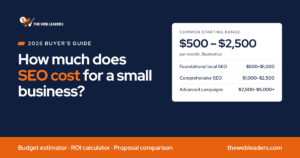
For a more detailed explanation, read our guide to how much SEO costs for a small business, which compares SEO costs, deliverables, and budgeting considerations.
The most important thing is to understand what work is necessary before agreeing to pay for it.
Frequently Asked Questions
Why isn’t my business showing up when I search its name?
Your Google Business Profile may be unverified, restricted, missing, or difficult to find. Your website may also be unindexed or have limited visibility.
Check your Business Profile status and use Google Search Console to investigate your website separately.
Why is my business showing up on Google Maps but not Google Search?
Your Business Profile and website are separate search surfaces.
A valid Business Profile doesn’t guarantee that Google has indexed your website or that your website ranks prominently in organic search.
Inspect your website using Google Search Console.
Why is my website showing up but not my Google Business Profile?
Your website may be indexed while your Business Profile is unverified, restricted, ineligible, or otherwise not appearing as expected.
Check your profile’s status and eligibility.
Why does my business appear on Google but not when someone searches “near me”?
Local search results depend on factors including relevance, distance, and prominence.
Your business may appear for its name without ranking prominently for broader service searches.
Can I pay Google to make my business appear on Google Maps?
Creating and managing an eligible Google Business Profile is free.
You can purchase advertising through Google Ads, but paying for advertising does not purchase higher rankings in unpaid local search results.
Does verifying my Google Business Profile guarantee rankings?
No.
Verification confirms management eligibility, but Google determines local rankings through its own systems.
How do I know if Google has indexed my website?
Use Google Search Console’s URL Inspection tool to check specific pages.
A site: search may provide a quick indication but isn’t a definitive indexing audit.
Why did my business disappear after I changed my website?
A redesign or migration may change URLs, redirects, internal links, content, canonical tags, or indexing settings.
Review Search Console and compare your previous website structure with the current version.
Can Google remove my business listing?
Google may restrict or remove Business Profiles that violate its policies or fail eligibility requirements.
Review any available notices and follow Google’s supported appeal procedures.
How long should I wait after requesting indexing?
Google may take days to weeks or longer to process changes, depending on the circumstances.
Indexing requests do not guarantee inclusion, and repeatedly submitting the same URL generally isn’t a substitute for resolving the underlying issue.
Can a Google Business Profile rank without a website?
An eligible Business Profile can appear in local results without a website.
However, a useful website can provide additional information, credibility, and opportunities to attract customers through organic search.
Can an SEO company guarantee that my business will appear first?
No legitimate SEO provider can guarantee a specific organic ranking.
Be cautious of companies promising guaranteed first-place placement.
Stop Losing Customers Who Can’t Find Your Business
If your business isn’t showing up on Google, the solution starts with understanding why.
You might have a verification problem, an indexing issue, a technical website error, or a local ranking challenge.
Each situation requires a different approach.
And not every business needs an expensive ongoing SEO package to solve it.
At The Web Leaders, we help small businesses identify what’s preventing them from being found, chosen, and contacted.
Our approach goes beyond simply increasing website traffic. We look at your online visibility, website performance, reputation, and ability to turn interested visitors into actual customers.
We diagnose the problem before recommending a solution. We believe your marketing investment should be based on the work your business needs, not an arbitrary package or the competitiveness of your industry alone. And we work with one business per industry in each service area, so we’re never also working for the competitor you’re trying to outrank.
Sources and Further Reading
This guide draws on Google’s official documentation for Business Profiles, crawling, indexing, canonicalization, local rankings, and website troubleshooting.
- Google Business Profile eligibility and representation guidelines
- Verify your business on Google
- Google Business Profile appeals
- Tips to improve your local ranking on Google
- Google Search crawling and indexing documentation
- Google Search Console URL Inspection
- Introduction to robots.txt
- Robots meta tags and indexing directives
- Canonicalization and duplicate URLs
- Site moves with URL changes
- Google Search Console manual actions
- Google Search Console security issues
Editorial disclosure: The Web Leaders provides website design, local SEO, and digital marketing services. The company has a commercial interest in the subjects discussed in this article. Troubleshooting guidance is educational and does not guarantee indexing, rankings, or specific business results.
About the author. Blake Lambert is the founder of The Web Leaders, a web design and local SEO studio based in Oxford, Alabama, working with small businesses across the United States.
Planning your marketing budget? Read our small business SEO cost guide, with a budget estimator and ROI calculator.